

Integration & Settings
Settings
Customize your DebateFlow experience and connect your Tabroom account to enable automatic assignment syncing.
Accessing Settings
Click your profile picture in the top right corner of any page, then select Settings from the dropdown menu.
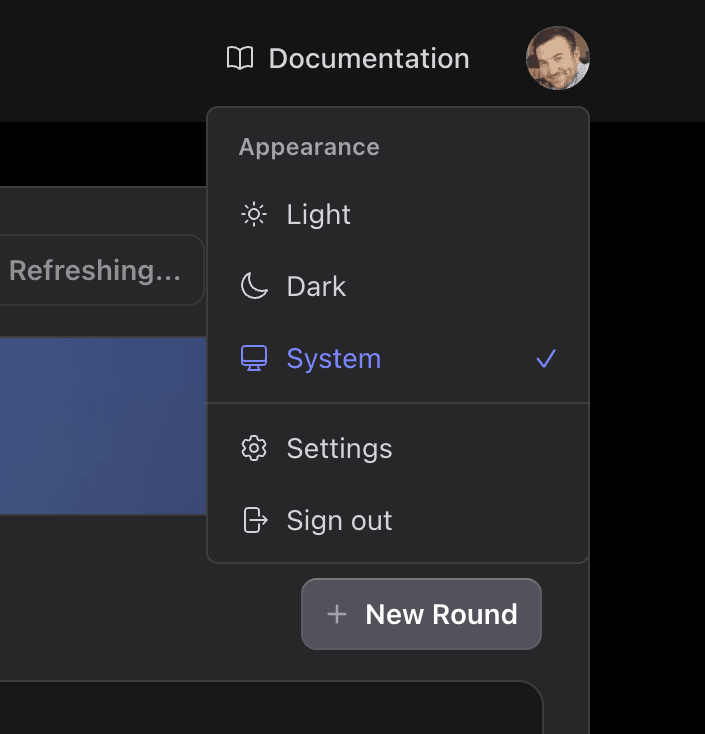
Appearance
Choose your preferred color scheme:
- Light - Bright interface for well-lit environments
- Dark - Easier on the eyes in low-light settings
- System - Automatically matches your device's theme preference
Your appearance preference applies across all pages and is saved to your account.
Account Information
Your account details come from how you signed in - Google, or an email sign-in link. This section shows:
- Profile photo - From Gravatar, matched to your email address
- Email address - The one you signed in with
- Display name - How your name appears in DebateFlow
You cannot change these on this page. Change your photo at Gravatar. If you signed in with Google, your email and display name follow your Google account - otherwise contact us.
Audio Settings
Test your microphone to ensure it's working properly before recording tournament rounds.
Testing Your Microphone
DebateFlow includes a built-in microphone check tool that helps you verify your audio setup is working correctly.
How to access the microphone check:
- From the Settings menu - Click your profile picture (top right), then select Test Microphone
- From the Dashboard - Click the Test Microphone button on the empty state
- From Settings page - Scroll to Audio Settings and click Test Microphone
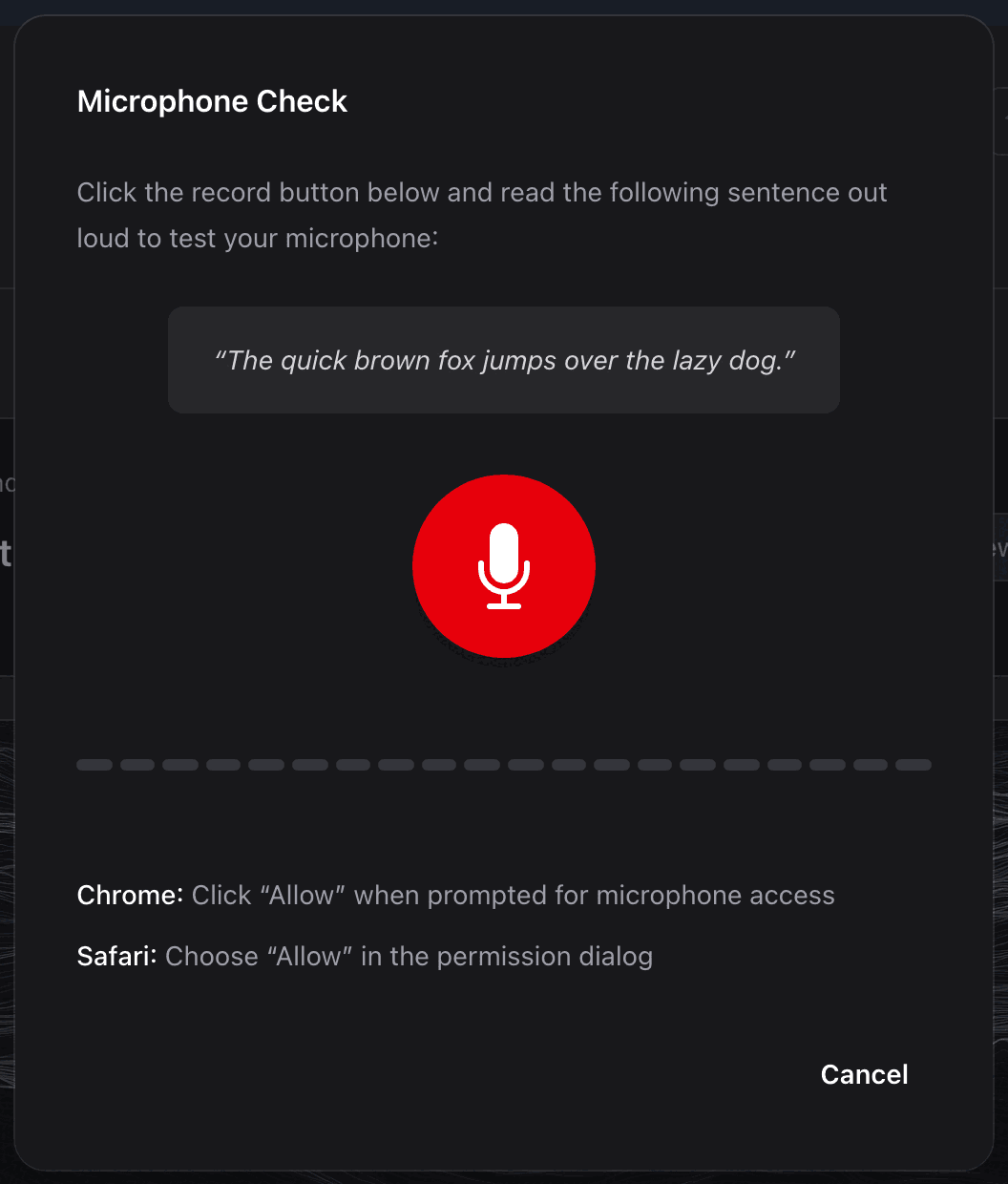
How the Microphone Check Works
The microphone check runs a complete audio test:
- Grant Permissions - You'll be asked to allow microphone access (if not already granted)
- Read Test Sentence - Click the red record button and read: "The quick brown fox jumps over the lazy dog"
- Real-time Feedback - Watch the waveform visualization to see your audio levels
- Automatic Transcription - The audio is transcribed to verify quality
- Results - You'll see what was transcribed and whether it matches the test sentence
When to test your microphone
Test your microphone before tournament day, not when you're sitting in front of debaters. This helps you catch permission issues, hardware problems, or audio quality concerns early.
Understanding the Results
Success: If transcription matches the test sentence, your microphone is working well.
Partial Match: If some words are transcribed correctly but not all, your mic is working but may need adjustment:
- Move closer to the microphone
- Reduce background noise
- Check microphone input levels in system settings
Failure: If transcription fails completely:
- Check browser permissions (see Troubleshooting below)
- Check system permissions for microphone access
- Verify the correct input device is selected
- Try a different browser
Troubleshooting Microphone Issues
If the microphone check fails, the tool provides browser-specific instructions:
Chrome:
- Click the camera icon in the address bar
- Select "Always allow" for microphone access
Safari:
- Go to Safari → Settings → Websites → Microphone
- Allow access for debateflow.app
For more detailed troubleshooting, see our Troubleshooting guide.
Analysis during a round
Show analysis during rounds - off by default.
With it off, the recording screen stays a notepad and a timer: you record, transcribe and take notes, and nothing about the arguments appears while the debate is happening. The full analysis runs the moment you press Complete Round, so your feedback, speaker point suggestion and reason for decision are exactly the same either way.
With it on, a panel follows along during the round showing the arguments each speech made and which of the other side's it answered. It never says who is ahead, never calls an argument dropped, and is never shown to a competitor - see what we do during a round.
Each round stores whether this was on when it started, and says so on its details page. If a tournament asks what you were running, that is the answer to show them - not what your settings say today.
Tabroom Integration
Connect your Tabroom.com account to automatically sync your judging assignments.
Setting Up Tabroom Integration
- Enable Tabroom Integration - Toggle the switch to ON to enable the integration
- Enter your Tabroom username - The same username you use to log into Tabroom.com
- Enter your Tabroom password - Your Tabroom.com password
- Test Connection - Click this button to verify your credentials work
- Save Settings - Once the connection test succeeds, save your settings
First time connecting?
After connecting, it may take a few seconds to sync your assignments. Go to your dashboard to see upcoming judging assignments appear automatically.
How It Works
Once connected, DebateFlow will:
- Automatically fetch your judging assignments from Tabroom
- Pre-fill round details (teams, speakers, tournament info)
- Update when new assignments are published
- Show ballot status for each assignment
You'll no longer need to manually enter team names or tournament details - it all comes from Tabroom.
Security
Your credentials are secure
Your Tabroom username and password are encrypted and stored securely. We only use them to communicate directly with Tabroom.com to fetch your assignments. We never share your credentials with anyone else.
Troubleshooting Connection Issues
If the connection test fails:
- Verify your credentials - Make sure you're using the correct Tabroom.com username and password
- Check Tabroom.com - Try logging into Tabroom.com directly to confirm your account works
- Try again - Sometimes Tabroom.com has temporary connectivity issues; wait a few minutes and try again
If you continue to have issues, use our contact form for assistance.
Disabling Tabroom Integration
To disable Tabroom integration:
- Toggle off "Enable Tabroom Integration" - Switch the toggle to OFF
- Click Save Settings
Your existing rounds will remain in DebateFlow, but new assignments won't sync automatically. Your credentials will remain saved (encrypted) so you can re-enable the integration anytime by toggling it back on.
To completely remove your credentials, turn off the toggle and clear the username and password fields before saving.
Sign Out
To sign out of DebateFlow, click your profile picture and select Sign out from the menu.
Your rounds and settings are saved to your account, so you can sign back in anytime to access them.
Related Documentation
- Tabroom Integration - Detailed guide on using Tabroom features
- Getting Started - Initial setup and first round walkthrough