

Integration & Settings
Tabroom Integration
Connect your Tabroom account and your assignments appear on the dashboard. On the day, each ballot starts a round with the team and speaker names already in it. The ballot goes the other way by hand: DebateFlow formats it, and you paste it into Tabroom yourself.
Connecting your Tabroom account
To use Tabroom integration, you need to connect your Tabroom.com account to DebateFlow.
To connect your account:
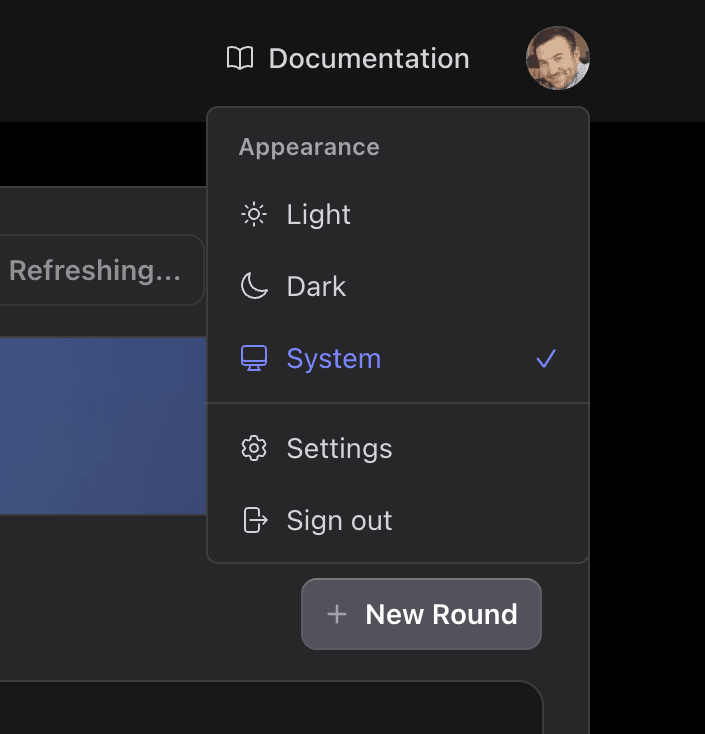
- Click your profile picture in the top right corner
- Select Settings from the menu
- In the Settings page, find the Tabroom Integration section
- Turn the switch on
- Enter your Tabroom.com username and password
- Click Test Connection to check that they work
- Click Save Settings
Once connected, you'll see a green checkmark confirming the connection is active.
Security note
Your Tabroom credentials are encrypted and never sent anywhere except directly to Tabroom when fetching your assignments.
Once connected, DebateFlow will automatically check for your upcoming assignments.
Your assignments appear automatically
After connecting, check your dashboard. You'll see Upcoming Judging Assignments pulled directly from Tabroom.
As soon as Tabroom publishes assignments for a tournament, they'll show up here. You don't need to manually enter anything.
Each one shows the tournament, where it is, the dates, and whether your assignment is confirmed. Open Tabroom → opens that tournament on Tabroom. Rounds don't start here—that happens from a ballot, below.
On the day of judging
An assignment covers the whole tournament. The round you are about to judge arrives on its own, as a ballot.
Once an assignment is listed, an Upcoming Ballots section appears below it. When the tournament releases a ballot to you, it shows up there with the round name, the two teams and the room.
DebateFlow checks every ten seconds, so you can leave the page open. If your browser allows notifications, it tells you when a new ballot arrives.
What gets filled in for you
Tap Create Round on a ballot. The Start New Round form opens with these already in it:
- Tournament name
- Both team names (schools)
- All four speaker names
- Round number
Check them against your Tabroom schematic—the list of who judges which room. You can change any field that doesn't match. Then set each team's side, confirm recording consent, and start the round.
One thing is never filled in for you: the box confirming you have permission to record. Ask both teams out loud, then tick it yourself.
Sides
Each team card has a side toggle. Set one team and the other takes the opposite side. Tabroom doesn't always make it clear which school is on which side, so compare against your schematic.
The start button then names the team that speaks first. That is the quickest way to catch a mix-up — before the round is recorded against the wrong team.
Submitting your ballot
After you've completed your feedback, you'll see the Preview for Tabroom screen.
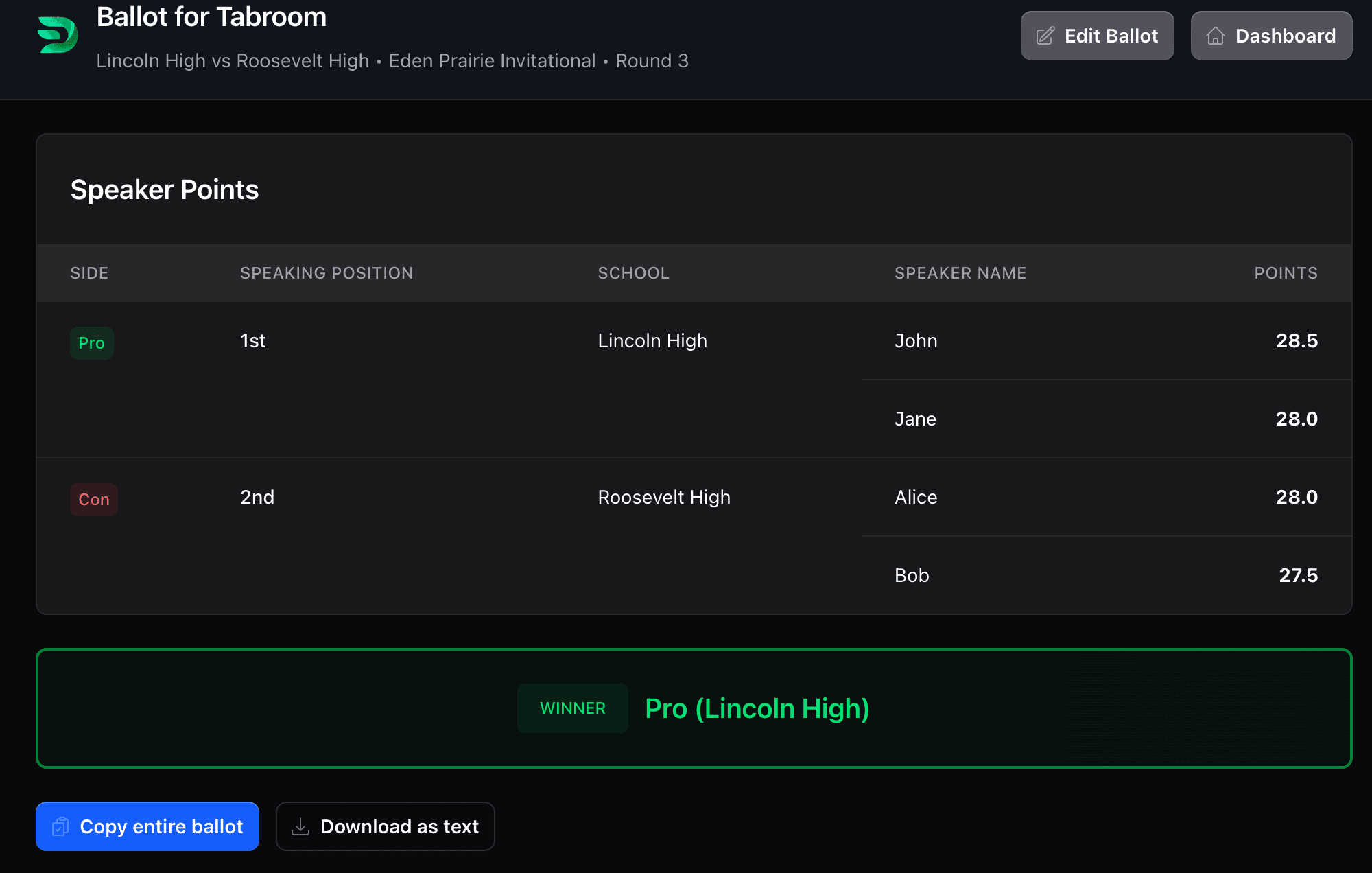
This shows everything you need to submit to Tabroom:
- Winner (clearly highlighted)
- Speaker points for all four debaters
- Your complete RFD (Reason for Decision)
- Feedback for each school
Copy with one click
Each block of writing has its own Copy button: your reason for decision (RFD), and the feedback for each team. Higher up the page, Copy entire ballot takes everything at once, including the winner and the speaker points.

Tap Copy, then paste it into the matching box in Tabroom.
Typical workflow:
- Open Tabroom in another tab
- Go to your ballot
- In DebateFlow, tap Copy next to Reason for Decision (RFD) → paste into Tabroom
- Tap Copy next to each team's feedback → paste into Tabroom
- Type the winner and the speaker points into Tabroom, reading them off this page
- Submit your Tabroom ballot
Done in under a minute.
Export from dashboard
If you need to access your ballot later, you can always export it from the dashboard.
Find the round in your "Your Rounds" section and click the export icon. You'll see the same "Preview for Tabroom" screen with all your copy buttons.
What if something goes wrong?
Assignments not showing up
If your assignments aren't appearing:
- Make sure you've connected your Tabroom account in Settings
- Check that Tabroom has actually published the schematic for your tournament
- Try disconnecting and reconnecting your account
- Check that your Tabroom credentials are correct
Details don't match
If the pre-filled details don't match what's on your schematic:
- The tournament director may have updated information in Tabroom after we synced
- You can manually edit any field before starting the round
- Let us know if this happens frequently—it might be a bug
Can't copy/paste
If the copy buttons aren't working:
- Make sure your browser allows clipboard access (you may see a permissions prompt)
- Try clicking the button again
- As a backup, you can always select the text manually and copy it the old-fashioned way
Why Tabroom integration matters
Without DebateFlow's Tabroom integration, you'd have to:
- Manually look up your assignments
- Type in all team names and speaker names by hand (with risk of typos)
- Remember round numbers and tournament details
- Type your entire RFD and feedback into Tabroom's text boxes
With integration, all of that happens automatically. You spend less time on data entry and more time on actually judging.
What we don't do (yet)
DebateFlow doesn't automatically submit ballots to Tabroom. You still need to paste your decision into Tabroom manually.
Why? Because ballot submission is a serious responsibility. We want you to review everything one more time in Tabroom before you hit that final submit button.
We're exploring ways to make this even more seamless in the future, but for now, copy-paste is the safest approach.
Tips for smooth Tabroom use
Connect early. Link your Tabroom account before the tournament starts, not when you're rushing to submit a ballot.
Double-check sides. The first time you judge teams, verify which side they're on. This prevents mistakes later.
Keep Tabroom open. While judging, have Tabroom open in another tab so you can quickly paste and submit when done.
Don't wait too long. Copy your ballot to Tabroom soon after the round. Tournaments have ballot deadlines, and you don't want to hold things up.
What's next?
You now know everything you need to use DebateFlow effectively! Here are some helpful resources:
Questions or feedback?
Having trouble with Tabroom integration? Found a bug? Have a suggestion? We'd love to hear from you. Use our contact form to get in touch.