

Getting Started
Getting Started
Welcome to DebateFlow! If you're new to judging debates, don't worry—we've designed everything to be simple and stress-free. This guide will walk you through your first time using the platform.
Signing in
Sign in with Google, or ask for a sign-in link and we'll email you one. There is no password to remember.
First time here?
If you don't have an account yet, you can request access to join the beta program. We're working with tournament directors to make sure all judges have access before their tournaments.
Your dashboard
Once you're signed in, you'll land on your dashboard. This is where your assignments and your finished rounds live.
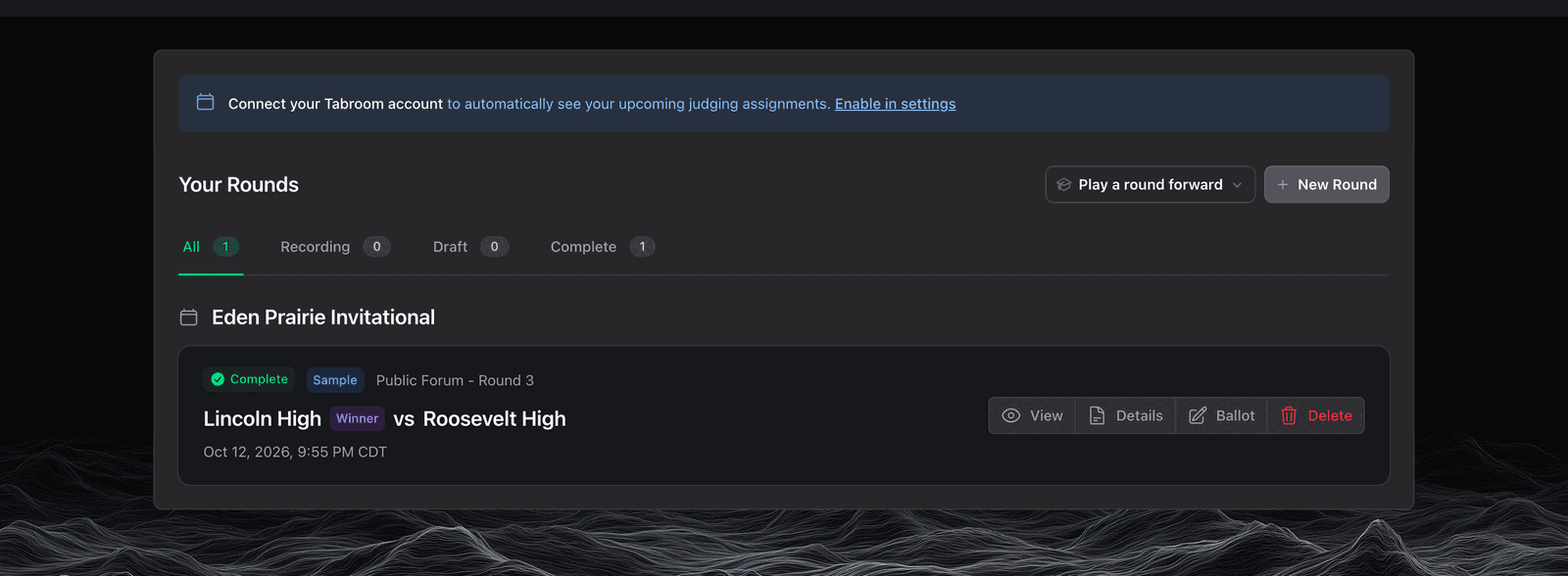
What you'll see
Upcoming Judging Assignments
If you've connected your Tabroom account (more on that in our Tabroom Integration guide), your assignments will automatically appear here. No need to manually enter anything—we pull your schedule directly from Tabroom.
Your Past Rounds
Below your upcoming assignments, you'll see rounds you've already judged. Each one shows:
- The teams and tournament name
- When you judged it
- Quick actions to view details, copy your ballot, or delete the round
Don't see your assignments?
Make sure you've connected your Tabroom account in Settings. We can only show assignments that Tabroom has published.
Pro Tips for Success
Connect Tabroom early - Link your Tabroom account before the tournament starts, not when you're rushing to judge your first round. This ensures your assignments load automatically.
Test your microphone - Before tournament day, use the built-in microphone check tool to verify your audio setup. Click your profile picture → Test Microphone to run a complete test with real transcription. This catches permission issues, hardware problems, and audio quality concerns before you're in front of debaters. See Audio Settings for detailed instructions.
Starting your first round
There are two ways to start. If the tournament has released your ballot, start from that one—the names come with it. Otherwise you type the details in.
From a Tabroom ballot
Your ballots arrive on the day of the tournament. Once an assignment is listed, an Upcoming Ballots section appears below it. Each ballot shows the round, the two teams and the room.
DebateFlow checks for new ballots every ten seconds, so you can leave the page open. If your browser allows notifications, it tells you when one arrives.
Tap Create Round on the round you are judging. The form opens with the tournament, both team names, all four speaker names and the round number already in it.
Check them against your schematic—the list of who judges which room. You can change anything that doesn't match.
By hand
No ballot yet, or no Tabroom account? Tap New Round on the dashboard and fill the form in yourself:
- Format—Public Forum (Lincoln Douglas is not open yet)
- Tournament and Round #—optional
- Team A and Team B—the two schools
- Four speaker names—two per team
Sides
Each team card has a side toggle — Pro or Con in Public Forum. Set one team and the other takes the opposite side.
The start button then names the team that speaks first, so a sides mix-up is caught before the round starts rather than during the first speech.
Recording consent
Before you start, you'll need to confirm that both teams have given permission to record the round. This is important—we take student privacy seriously.
Recording consent required
Student privacy is essential. Make sure both teams agree before starting. The audio is deleted immediately after transcription—we only keep the text.
Check the box to confirm consent, then press the start button. Recording begins as soon as the round opens.
Your first-time tour
The first time you start a round, you'll see a helpful tour that shows you around.
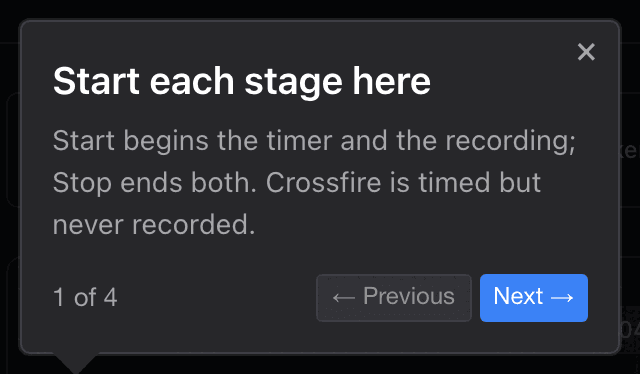
The tour is four steps:
- Start each stage here - Start begins the timer and the recording, Stop ends both, and crossfire is timed but never recorded
- Moving through the round - Previous and Next move between stages
- Who is speaking - set this so feedback and speaker points reach the right student
- Prep time - one clock per team, started when they ask for it
You can skip it. Every screen tells you what to do next, and these docs are here if you want them.
Practicing before tournament day
Three ways to practice, in the order to try them. None of them needs a microphone, and none of them goes to a tournament.
The sample
Start here. A finished round is already in your rounds list, badged Sample. Click View to open its ballot: the reason for decision, the speaker points, and the feedback for both teams. This is what you hand in at the end of a real round.
You cannot change the sample — it stays as it is so you have something to compare against. The welcome email's See a finished round button opens the same round.
Your turn
On the sample's ballot, click Decide it yourself. That makes your own copy of the round with the decision cleared, badged Your turn, and opens the decision wizard on it.
Make the call, write the feedback, then click See how this round was judged. to put your ballot next to the sample's.
Practice a round
Click Practice a round on your dashboard, then Public Forum. The round details are filled in already, so click Start Round.
Now press through all eleven stages. Each speech is typed in for you when you click Stop. This is the only place you see what happens between speeches — taking notes, the per-speech screen, the analysis arriving.
Practice shows where Start Recording would be. The microphone stays off and the speeches are typed in. Everything else runs for real: the timers, your notes, the per-speech screen, and the full analysis at the end.
If you only have two minutes
Read the sample. Practice a round is eleven stages of clicking, so leave it until you want to see the recording screen in motion.
What's next?
Now that you know how to start a round, here's what to explore:
Core Workflow:
- Workflow Overview - Complete end-to-end judging process from start to finish
- Recording Your First Round - Learn how to use the recording interface and take notes during speeches
- Understanding AI Analysis - See how DebateFlow helps you track arguments and understand what's happening
- Decision Wizard - Make your decision and assign speaker points
- Generating Feedback - Create helpful feedback using the 3 C's method
Setup & Integration:
- Tabroom Integration - Connect your Tabroom account so assignments appear automatically
- Settings - Customize your experience and manage integrations
Help & Support:
- Quick Reference - The checklist to print, and where to look things up mid-round
- FAQ - Common questions answered
- Troubleshooting - Fix common issues
Questions?
Stuck on something? Check our FAQ or use our contact form. We're here to help make your judging experience better.