

Using DebateFlow
Understanding AI Analysis
Most of the analysis runs after the round, once you press Complete Round. You can also turn on a panel that follows along during the round - it is off unless you ask for it. Either way, it is a second set of eyes on what was said, never a view on who is winning.
When analysis appears
After the round, always. When you press Complete Round, the full analysis runs: what each side argued, what went unanswered, what was carried forward, and how the two sides clashed. That is what the decision wizard and your feedback are built from, and it happens whatever your settings say.
During the round, only if you turn it on. Go to Settings and find Show analysis during rounds. The switch is off by default. With it on, two columns appear beside your notes once there is something to show:
- What Just Happened - the points the last speech made
- Argument Tracker - every point made so far, with its reasons
Each round stores whether that switch was on when it started. The round's Transcript tab says which it was, so if a tournament asks what you were running, you can show them.
During the round: What Just Happened
The column heads What Just Happened, with the line "Our analysis of the previous speaker" under it. It fills in after the first speech.
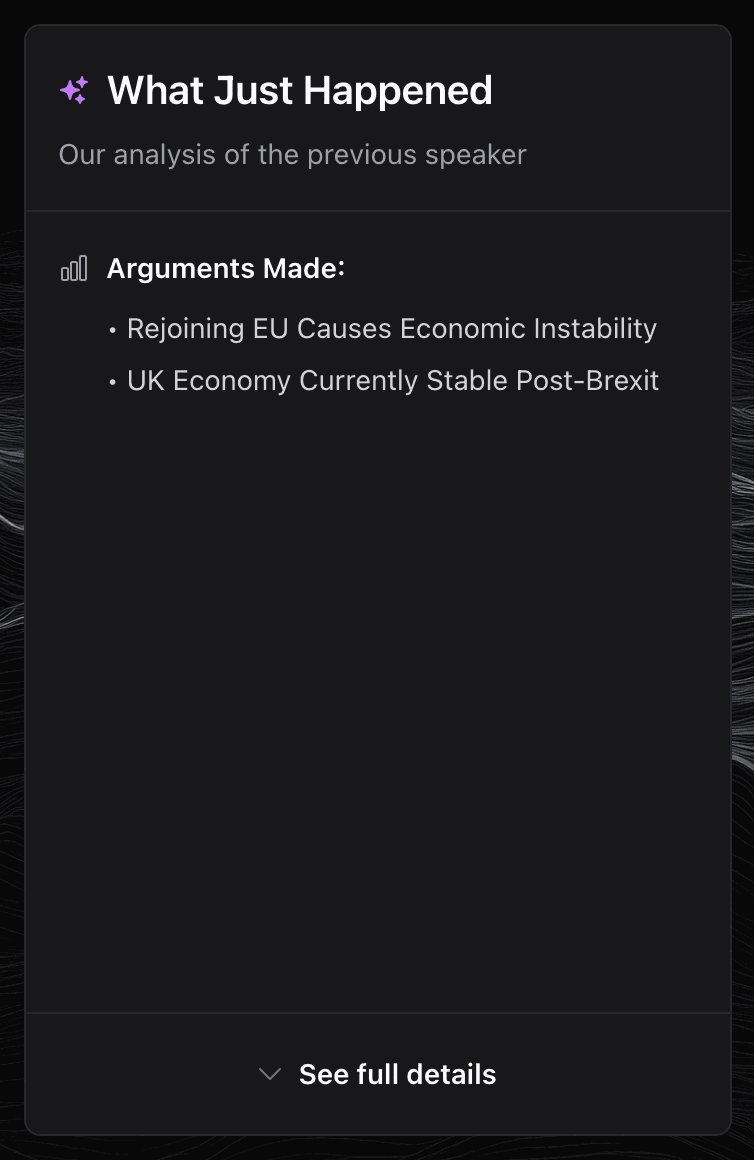
Arguments Made lists the points in the speech you just heard, one line each. Nothing else about them is judged. Crossfire gets no list - it is question time, so there are no new points to pull out, and the column says so.
See the reasons behind each point
See full details at the bottom of the column opens every point in it:
- Claim - what they are arguing
- Warrant - the reason it is true
- Impact - why it matters
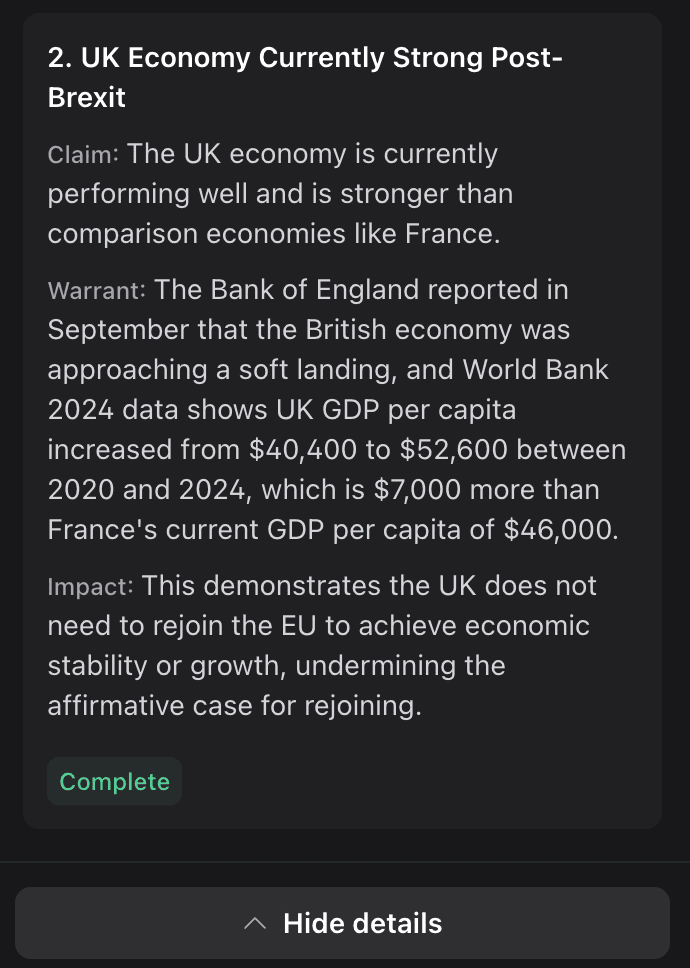
A point with all three is marked Complete. One missing a piece is labelled with the piece that is missing. That is a note about the speech, not a score. Hide details closes them again.
After a rebuttal: what they answered
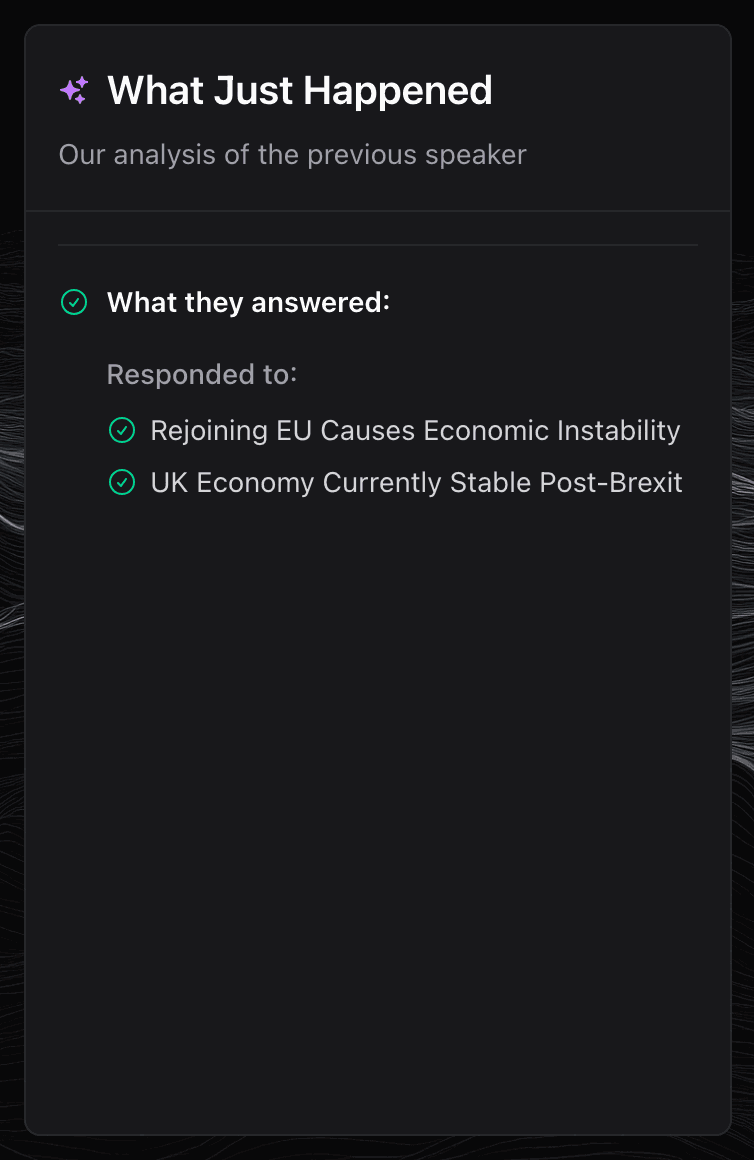
From the rebuttals on, the column adds What they answered, with a Responded to list naming the other side's points that speech took on.
After the summaries: what they kept
From the summaries on, the column adds Extension Analysis - how many points that team kept making, with their reasons attached (extending them), and which ones.
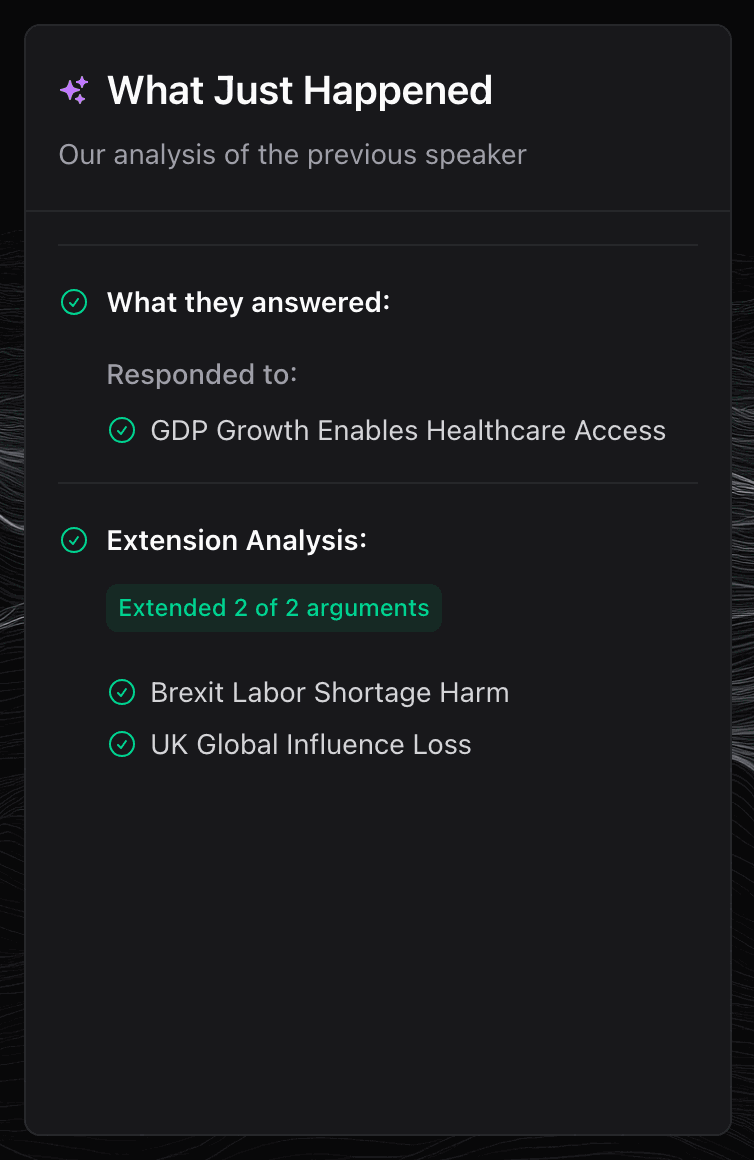
Keeping a point going into the last two speeches is how a team asks you to vote on it. Saying its name is not enough: the reason has to come with it.
Argument Tracker
The second column lists every point made so far, grouped by the team that made it. The team that is speaking now is badged Speaking now.
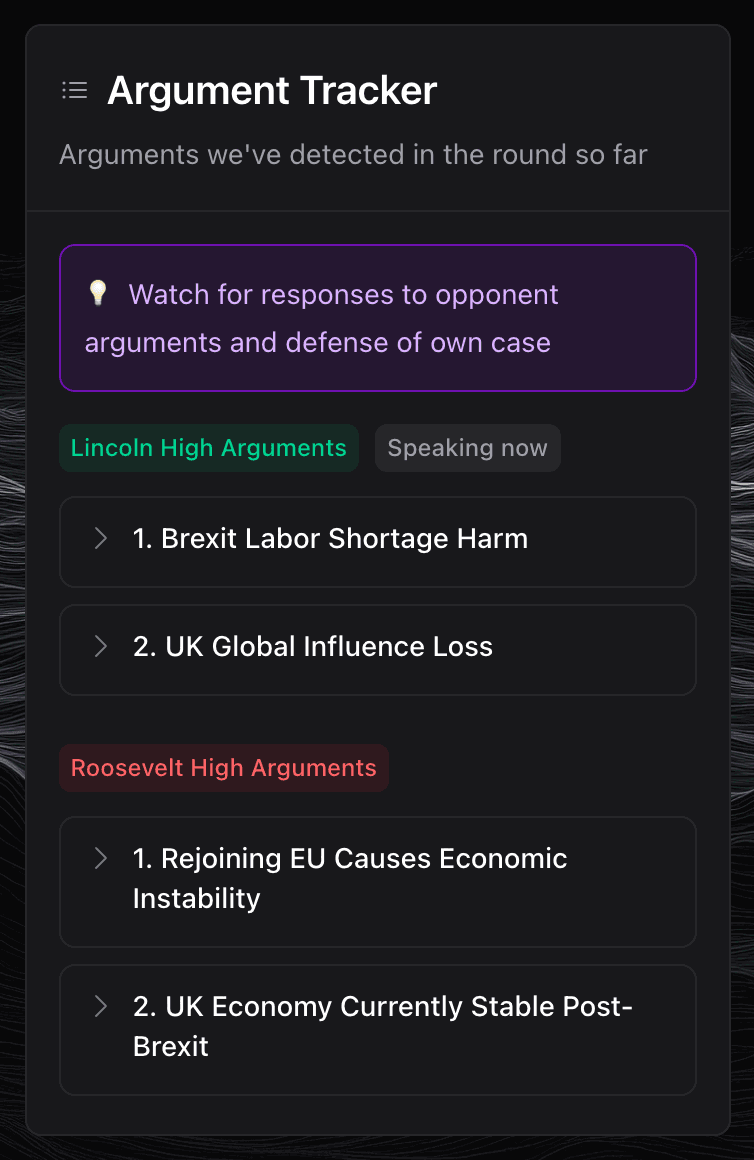
Tap any point to open it: a short summary, its claim, its reason, why it matters, and which speech it started in. Tap it again to close it.
This is the column to use when a speaker says "as we said in our case" and you cannot place which point they mean.
What you will not see until the round is over
No "never answered", no coverage score, no label saying a point is contested or lost, and nothing saying who is ahead.
Those are judgements about a debate that has not finished. The other side still has speeches in which to answer, and teams often answer late on purpose. A label mid-round would tell you the answer before the debate has finished making it.
The moment you press Complete Round, all of it appears: what each side never answered, how fully each answered the other, and which points survived to the final focus.
After the round: the round details page
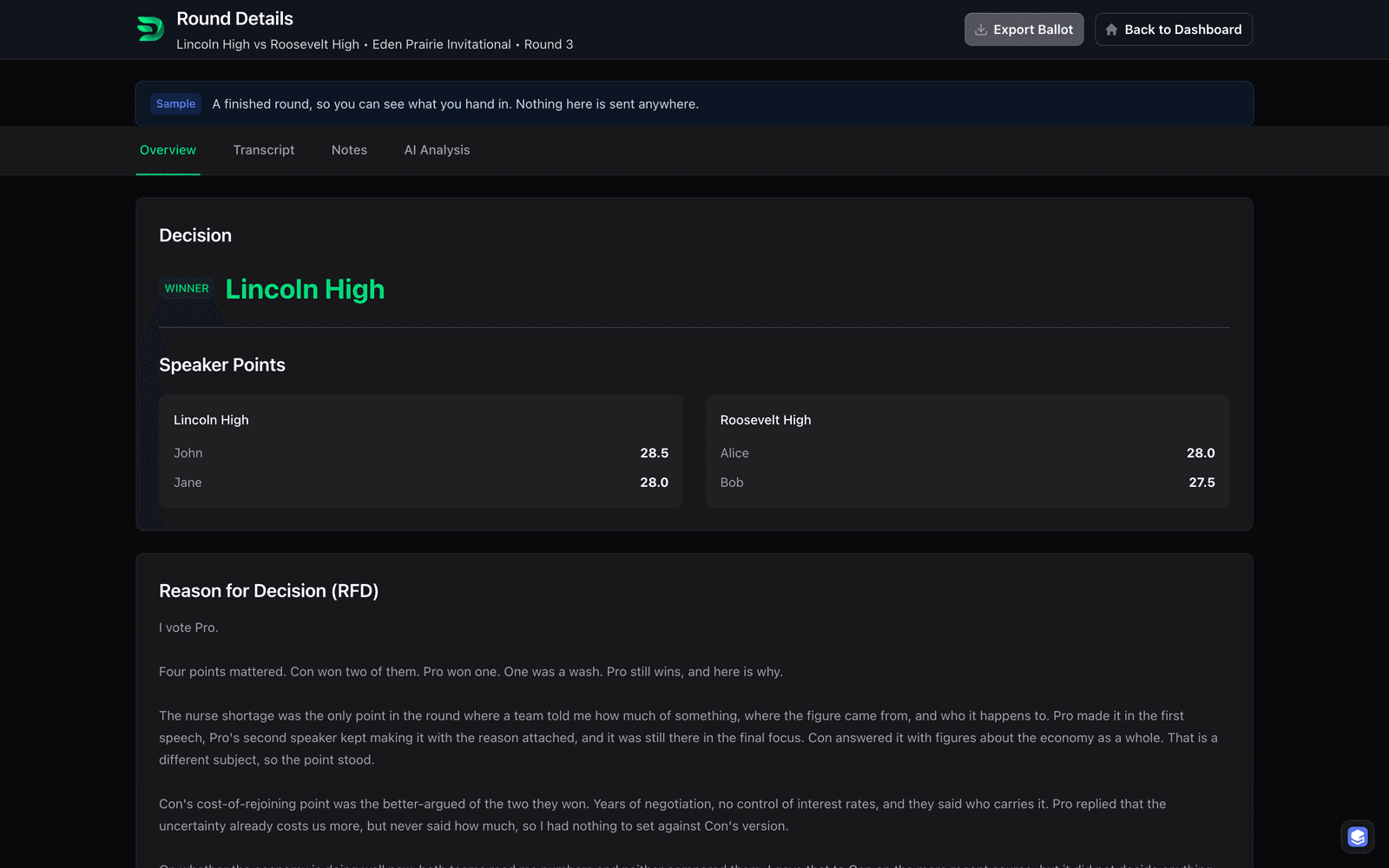
On the dashboard, a finished round has a Details button. It opens four tabs.
| Tab | What is on it |
|---|---|
| Overview | Your decision, speaker points, your reason for decision, and the feedback for each team |
| Transcript | Everything that was said, speech by speech |
| Notes | Every note you took during the round |
| AI Analysis | The argument flow, the main points you decided on (voting issues), the analysis's own read of the round, and the suggested speaker points with the reasons behind them |
Some panels on the AI Analysis tab need something the round did not always record, and they show nothing rather than a guess. The round timeline needs the per-speech screen to have been answered. The suggested speaker points need the post-round analysis to have finished.
The argument flow
The Argument Flow panel is your notes, done for you. Each line is one point, read left to right through the round.
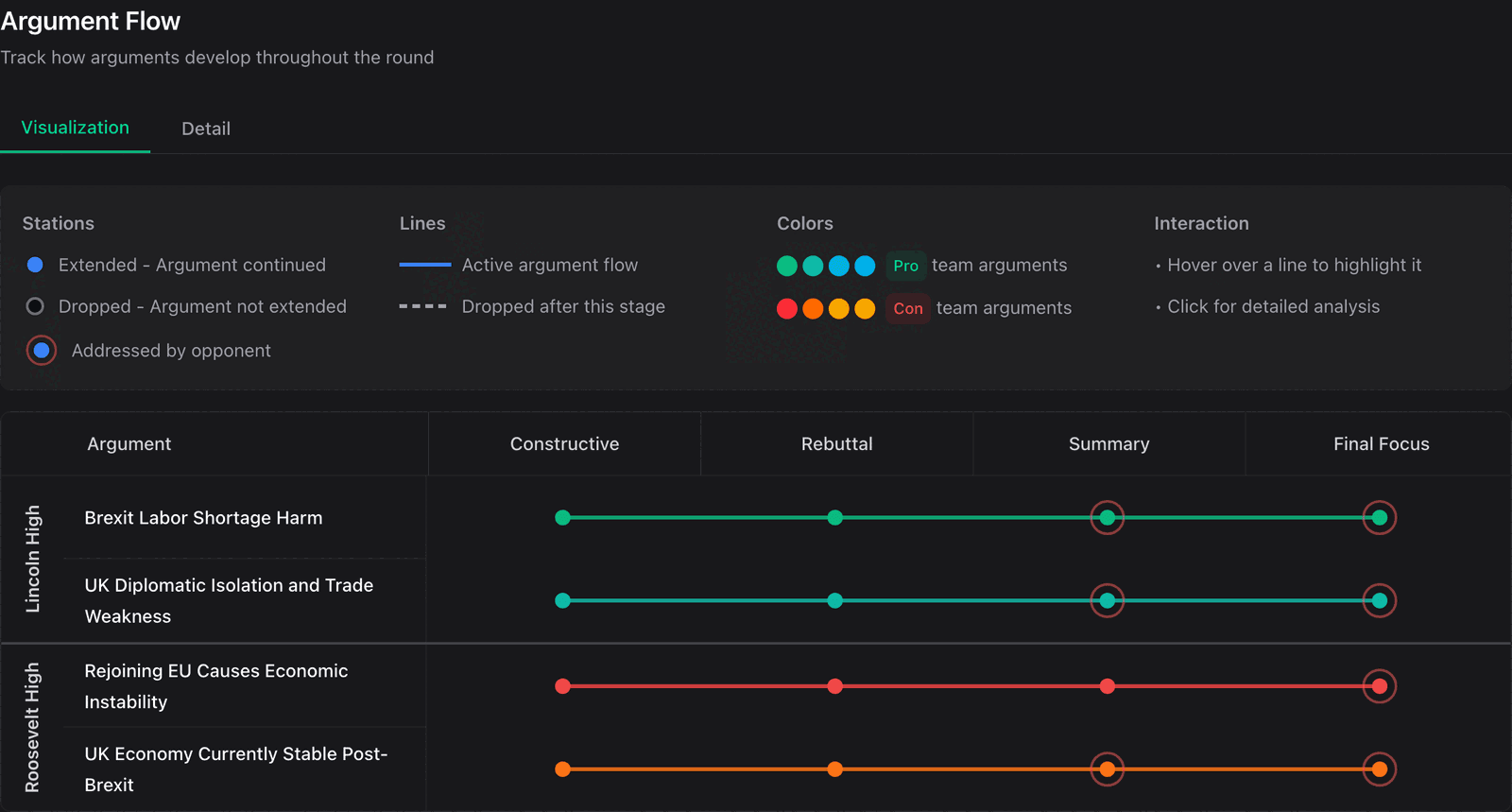
It has two tabs. Visualization draws the round as a map; Detail lists the same points as cards. On a phone you get Detail only.
On the map:
- A filled dot - the team kept the point going at that speech
- A hollow dot - the point stopped there
- A ringed dot - the other side answered it
- A solid line - the point is still live
- A dashed line - the point stopped after that speech
- Green is Pro, red is Con
Point at a line to pick it out from the others. Click one for the detail on that point.
Use it to check three things: which points each team kept to the end, which ones they let go, and where the two sides actually argued with each other.
What happens to the recording and the names
The sound is never kept. It is turned into text, and then it is gone.
Student names and school names are swapped for stand-ins before any of this analysis happens, so the AI reads the round without knowing who debated it. Your own notes go through the same swap. The names come back on your screen, where you are the only person who sees them.
What happens to a round's data is the full account, including which companies handle what.
Why it works this way
Debate rounds move fast. An experienced judge still misses when a point goes unanswered, or cannot remember which speech something first appeared in. Writing that down is what this is for.
It does not decide anything. You pick the winner, you set the speaker points, and you write the comments. The analysis is a record of what was said, offered to you after you have made up your own mind.
What's next?
Next Steps:
- Decision Wizard - Work through your decision and write your reason for decision
- Generating Feedback - Write comments using Compliments, Constructive criticism and Corrections
- Tabroom Integration - Put your ballot into Tabroom
Related Resources:
- AI Cleanup - The one AI feature that changes your own notes, and how to undo it
- Recording Your Round - Where these columns sit while you are judging
- Glossary - Every debate word, explained once
- Workflow Overview - The whole round, start to finish
Help & Support:
- Quick Reference - The checklist to print, and where to look things up mid-round
- FAQ - Common questions about AI in judging
- Troubleshooting - When analysis does not appear