

Using DebateFlow
Recording Your Round
Once you've started a round, you'll see the recording interface. Don't worry—it's designed to stay out of your way so you can focus on judging. Here's how it all works.
The recording interface
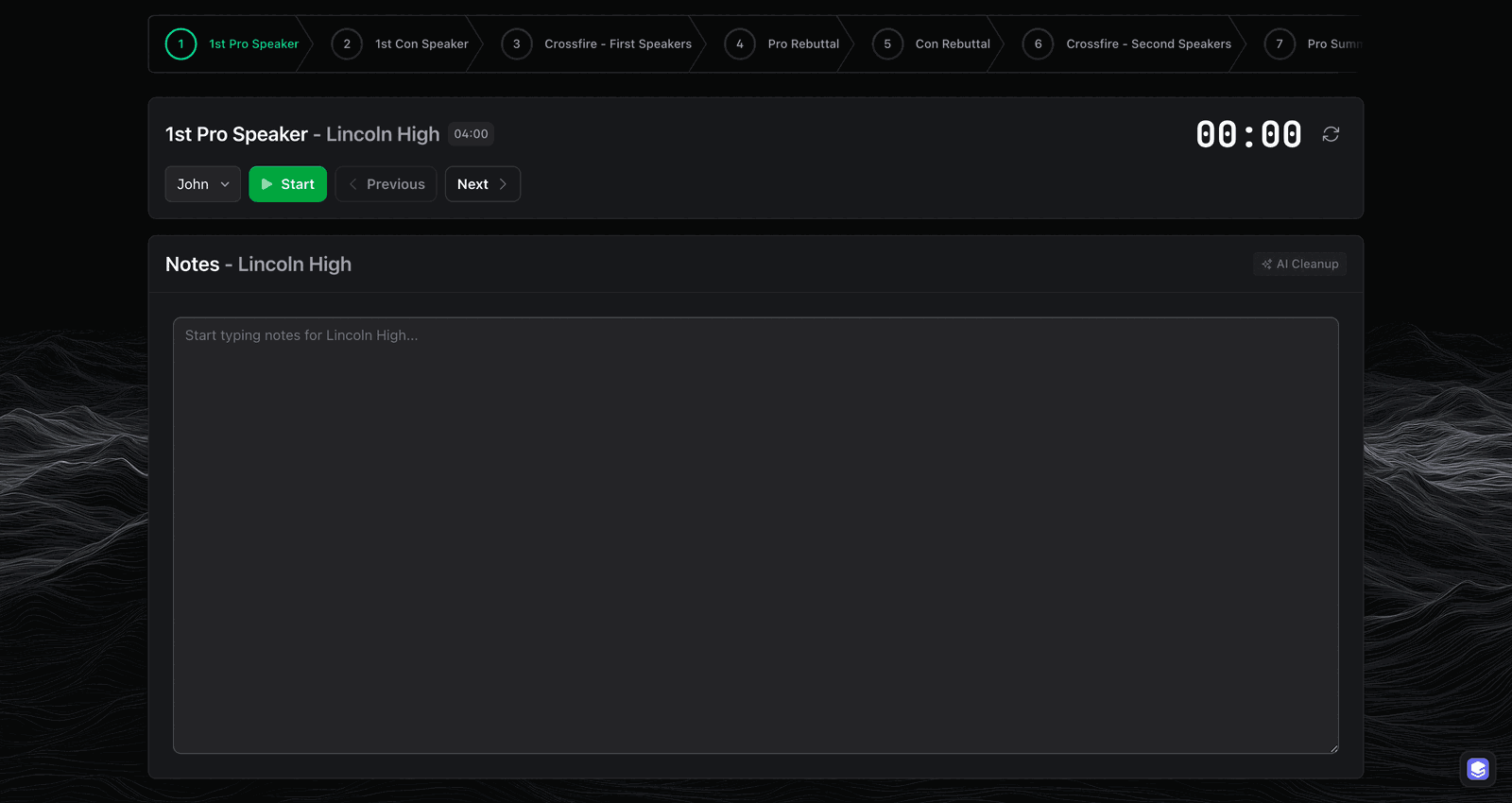
For Public Forum debates, we've set up all the stages automatically. You'll see them listed across the top, in the order they are spoken:
- 1st Pro Speaker
- 1st Con Speaker
- Crossfire - First Speakers
- Pro Rebuttal
- Con Rebuttal
- Crossfire - Second Speakers
- Pro Summary
- Con Summary
- Grand Crossfire
- Pro Final Focus
- Con Final Focus
If Con won the toss and speaks first, use Swap before you start and the whole list reorders - Con's speech first in every pair, checkpoints and analysis following along. Swap is only offered before the round is under way, because it reorders speeches you may already have recorded.
You don't need to manage any of this—just click through them in order. We'll handle the progression.
Starting a speech
When a debater is ready to speak, click the Start button.
As soon as you click Start, the timer begins counting up and we start recording the audio. All you need to do is focus on the speaker and listen to what they're saying.
The timer
The timer counts up to show how much time has elapsed:
- White text - Normal, within time
- Orange text - 30 seconds before the end (a heads-up for the debater)
- Blinking red - Time is up
"Time starts with my first word"
A debater may ask you to set the timer back to zero. Click the circular arrow next to the timer. The timer resets to 0:00 and recording carries on.
That arrow resets the timer every time you press it, with no undo, so it sits apart from Start and Stop.
Taking notes during the speech
During the session, all you need to do is focus on the speaker, listen to what they're saying, and take any notes about what you're taking away from their speech.
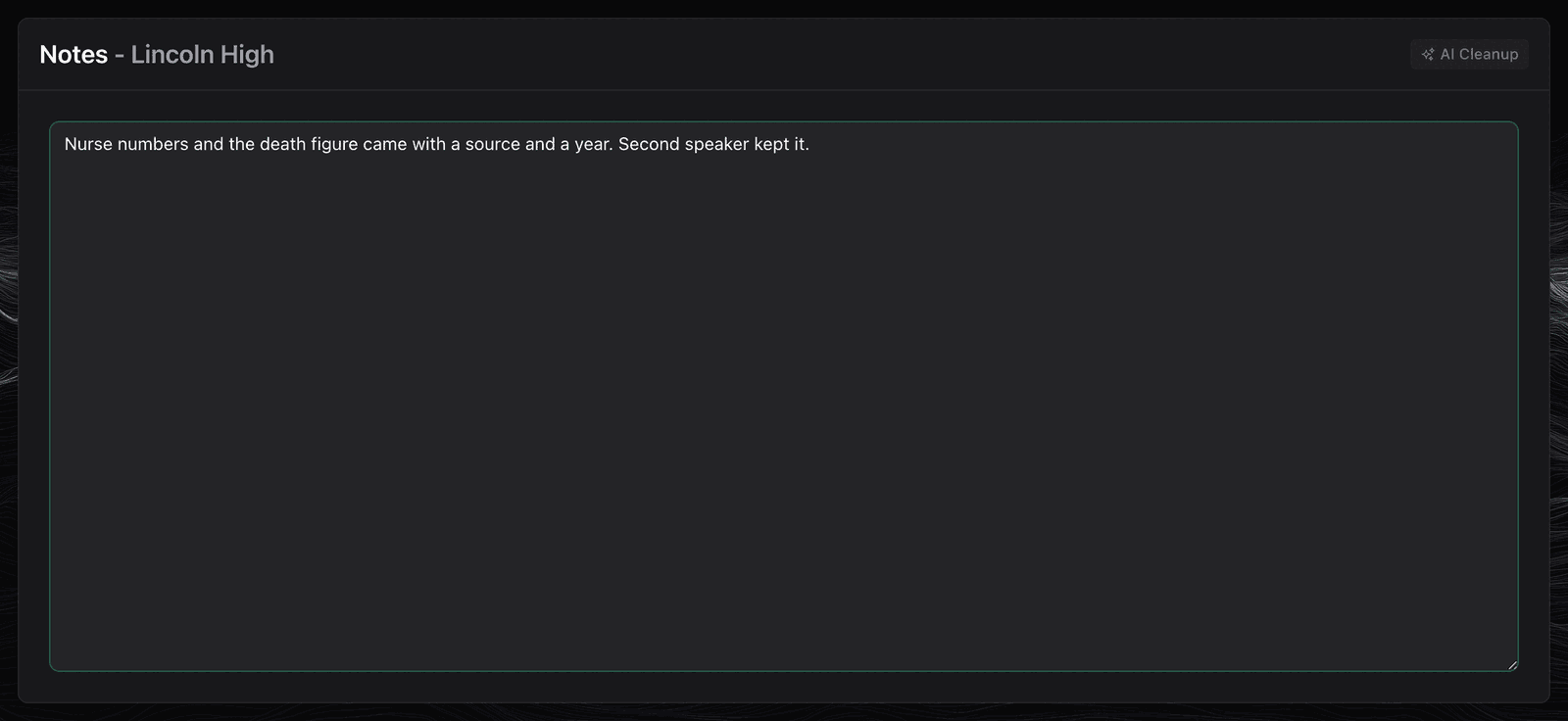
You don't need to write down everything—that's what the AI transcription is for. Instead, focus on your reactions and impressions:
- Arguments that stand out (good or bad)
- Evidence you want to verify later
- Moments that change your thinking
- Questions you have
Think of these as personal reminders, not a complete flow.
There is an AI Cleanup button at the top of the notes box. It rewrites what you typed, using the transcript of that speech, and there is an Undo beside it. Read AI Cleanup before you tap it - it is the one place the app changes your own words.
Marking reactions during speeches
As you listen to each speech, you can mark quick reactions to specific moments. Think of these as bookmarks—they help you remember important moments without interrupting your focus.
The six reaction types
You'll see a reaction bar during each speech with six options:
👍 Strong
- Use when: An argument is particularly compelling or well-evidenced
- Example: A debater cites recent, credible evidence with clear application
- Why it helps: Marks arguments you might want to reference in your RFD
😐 Weak
- Use when: An argument feels poorly supported or unconvincing
- Example: Vague claims without evidence, or outdated/irrelevant sources
- Why it helps: Reminds you of potential weaknesses to mention in feedback
📊 Evidence
- Use when: A debater cites notable evidence or statistics
- Example: Specific data from credible sources (CDC, peer-reviewed studies, etc.)
- Why it helps: Easy way to flag evidence you want to verify or reference later
🤔 Confused
- Use when: Something is unclear or hard to follow
- Example: Complicated argument structure, unclear link chain, confusing wording
- Why it helps: Identifies moments to mention in constructive criticism
⚡ Powerful
- Use when: A delivery moment stands out or makes an impact
- Example: Exceptional clarity, emotional appeal, or memorable phrasing
- Why it helps: Captures moments worth complimenting in feedback
🎯 Key Point
- Use when: Something feels like a potential voting issue
- Example: Major clash point, critical concession, or round-defining argument
- Why it helps: Flags what might become central to your decision
When to mark reactions
You don't need to mark reactions constantly—just when something stands out. A typical speech might have 2-5 reactions, not 20.
Think of reactions as highlights in a textbook. Mark what matters, not everything.
How reactions help later
When you're making your decision or writing feedback, you can review all your reactions to:
- Remember key moments from early in the round
- Identify patterns (which team consistently cited better evidence?)
- Find specific examples for your feedback
- Recall your real-time impressions before AI analysis influenced you
Your reactions are combined with AI analysis to give you a complete picture of the round.
Reactions are optional
If you prefer not to use reactions, that's fine. They're a tool to help you track the round, not a requirement. Some judges love them, others prefer just taking notes.
Stopping the speech
When the debater finishes speaking, click Stop.
This stops both the timer and the audio recording.
Stopped too early? Click Start again. The timer picks up where it left off and recording starts again. Both parts of the speech are transcribed.
Automatic transcription
At this point, we automatically take the recording and create a full transcript. You can see it by clicking the Timeline button in the upper right corner.
The transcript shows everything the debater said, organized by stage. This is helpful when you're trying to remember exact wording later.
Using the Timeline view
The Timeline is your complete record of everything that's happened in the round so far. It's available anytime you need to review earlier speeches.
What you'll see in the Timeline:
- Full transcripts - Every word from every speech, automatically generated
- Your notes - All the notes you took during each stage
- Your reactions - Every reaction you marked (👍 Strong, 😐 Weak, and the rest) with timestamps
- Stage organization - Everything organized by debate stage (1st Aff, 1st Neg, Crossfire, etc.)
Navigating the Timeline:
- Click on any stage to jump to that section
- See exactly when each speech started and how long it lasted
- Review what you were thinking at specific moments
When the Timeline is most useful:
- During later speeches - Quickly verify what was said in constructive or rebuttal
- Writing your RFD - Reference exact quotes or evidence citations
- Making your decision - Review the full flow of arguments through the round
- Creating feedback - Find specific examples to mention in your comments
Think of the Timeline as your perfect memory of the round—everything captured, organized, and searchable.
Privacy first
The audio recording is deleted immediately after transcription. We only keep the text, and student names are encrypted before any AI processing.
After each speech
When you're ready to move on, click Next. You get one short screen, and every part of it is optional - Skip for now is always there. If you are behind on your flow, flow; nothing here is worth losing the next speech over.
Could you follow this speech?
Yes, Mostly, or No - too fast or too much jargon.
This is the only question about delivery, and it is not a criticism of the student. Credit only the arguments you could follow - so saying "No" is a judging note, not a complaint. It never counts against the team.
It is also the single most useful thing a debater can learn. Every judge they will ever stand in front of has a speed they can follow, and nobody tells them where it is. Answering this question honestly is how that speaker finds out - it becomes advice for them, not a mark against them.
What they argued
After a constructive, the arguments we picked up from the speech, each with four one-tap flags:
- Strong - well reasoned, and it landed
- Weak - asserted, or thin on reasoning
- Key point - this could decide the round
- Confusing - you could not follow this part
Tap one to mark it, tap again to clear it. These go into the students' feedback and into the speaker point suggestion, so a couple of taps a speech is worth more than a long note.
What they did
The first two speeches make the arguments. Every speech after that works on the arguments already on the table. So from the first rebuttal on, this section is headed What they did, and each card names one thing the speech did and the argument it was aimed at.
| Card | What it means |
|---|---|
| Answered | Argued the claim, the reasoning or the impact is wrong |
| Turned | Used the other side's point against them (a turn) |
| Rebuilt | Answered the attacks on their own point and built it back up (a frontline) |
| Weighed | Compared whose point matters more (weighing) |
| New argument | Put a new point on the table instead of answering one |
Tap an underlined word to see what it means. Full text opens the rest of a card.
There is nothing to tap here. It is a record of the speech, kept for the students' feedback.
New argument in a summary or final focus is marked, because the other side has no speech left to answer it. Most judges do not let one decide the round.
A rebuttal is the one speech that can do both. If it put a new argument of its own on the table, you get What they argued for that speech instead, with the same four flags.
After a summary or final focus
Two extra questions, because these are the speeches whose job is to tell you how to vote:
- Did they tell you why to vote for them?
- Did they compare their wins against the other side's?
After the last speech
One more, asked before you see any analysis: who do you think won, and on what?
This is your own read while the round is fresh. It decides nothing - you make the actual decision next, and you can change your mind. It is kept so you can compare it with the analysis afterwards.
You can also add your own notes at any time.
Prep time
A team can ask for prep at any point in the round. The two prep clocks are at the top of the screen, under Pro Prep and Con Prep.
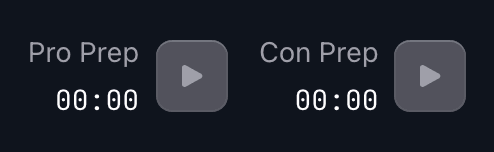
Click the play icon next to that team's clock. The clock counts up from 0:00, so the number you see is the prep they have used. Click the pause icon when they are done.
Each team gets three minutes for the whole round in Public Forum. The clock turns orange at 2:30, red past 3:00, and keeps counting - it does not stop itself. Starting a speech stops both clocks, so you never have to remember to.
You can start a clock from the screen after each speech too. The same two clocks are on it, with Start and Stop. Rounds don't wait for you to finish clicking buttons.
Crossfire: Take good notes
When you get to crossfire stages, things work differently.
We do not record during crossfire. It's too hard to tell who's speaking when debaters are going back and forth rapidly, so we can't attribute the audio to the right team.
This means crossfire is on you. Take notes on:
- What questions are being asked
- How debaters answer
- Any important concessions or clarifications
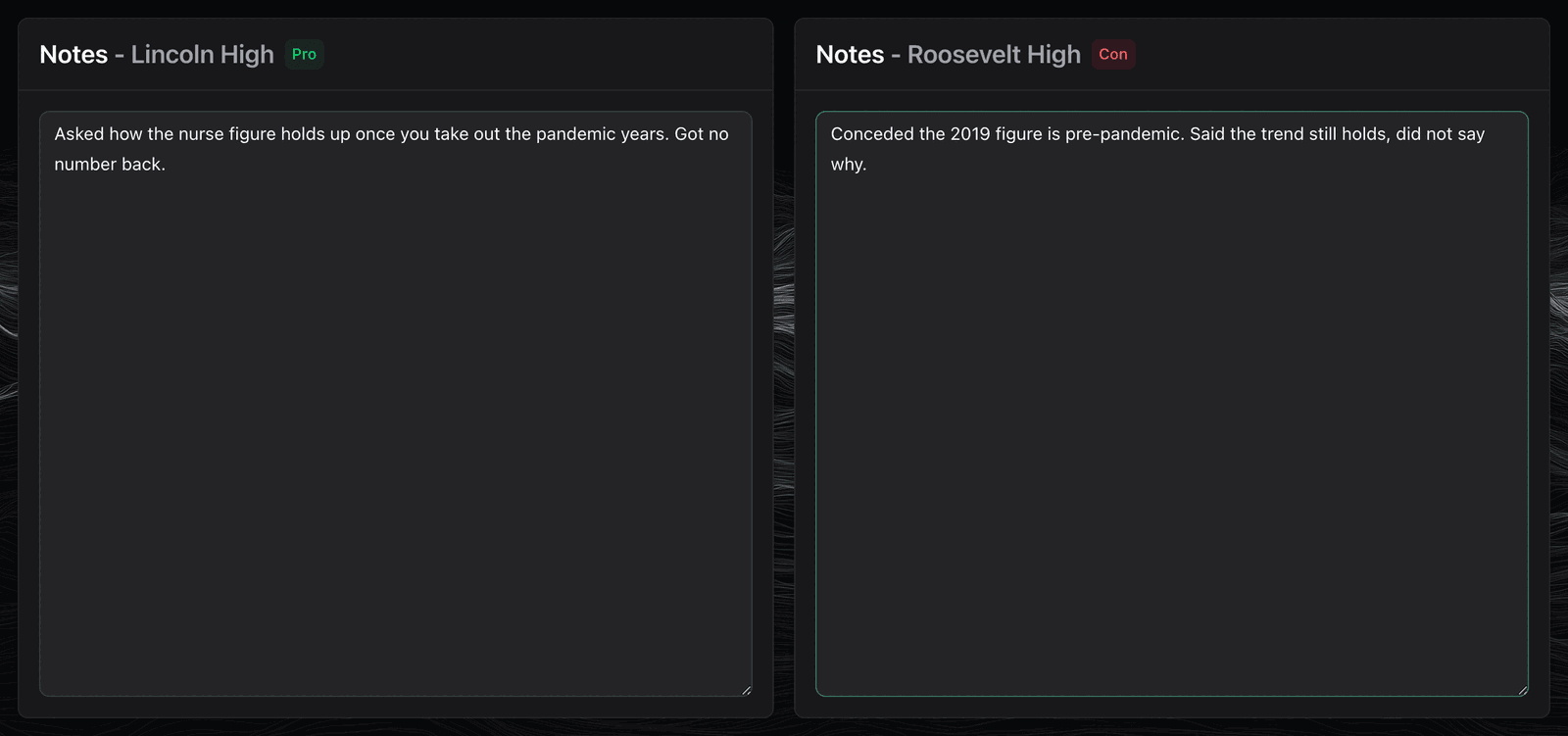
During crossfire you get a box for each team, side by side, because nobody is "the speaker" while two of them are questioning each other. Put what a team asked in their box, and what the other side gave back in theirs.
The timer still works the same—click Start when they begin, Stop when they're done. But your notes are the only record of what happened.
Analysis during the round (optional)
This is off unless you turn it on, in Settings → "Show analysis during rounds". With it off you still record, transcribe and take notes, and the full analysis runs the moment you press Complete Round - nothing is lost.
With it on, once there is something to show you'll see more on your screen. What you will not see is anything calling an argument dropped, a coverage score, or a chip saying who is ahead: the other side may still answer, and a debate is not over until the last speech. Those come after the round.
"What Just Happened"
You'll see a column called "What Just Happened" with our AI analysis of the previous speaker.
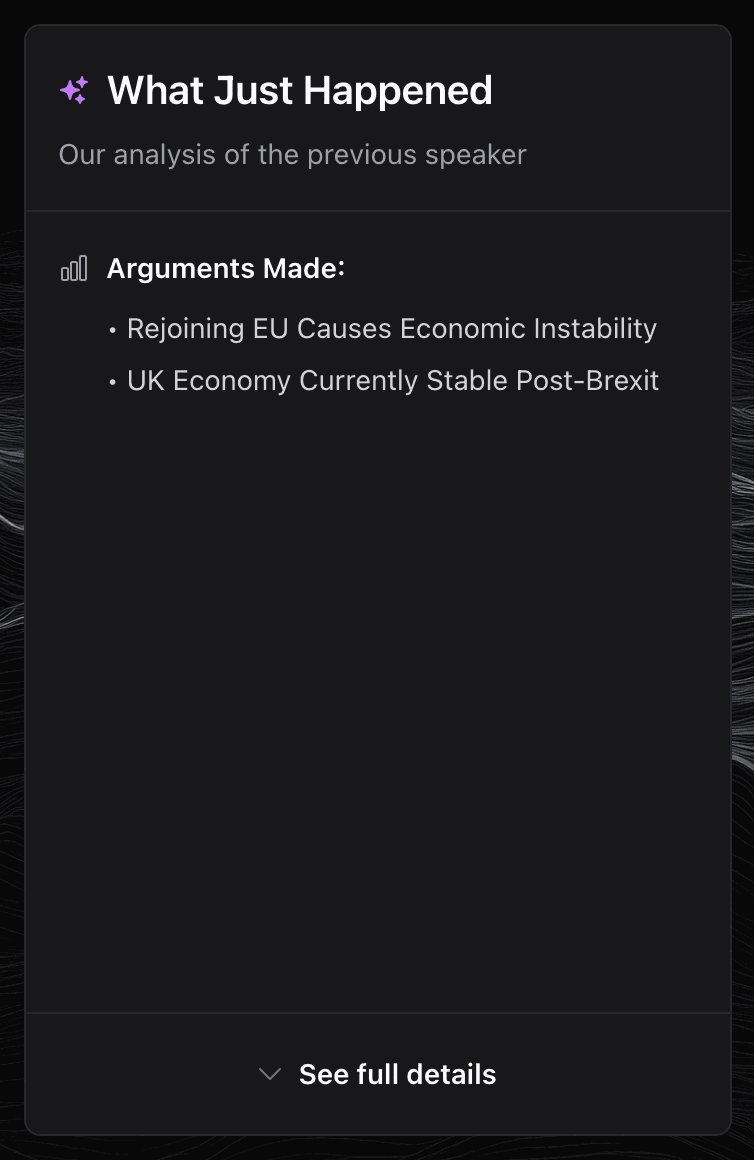
This gives you a sense of:
- What points were made
- Which of the other side's points that speech answered
- Which of their own points they kept going, with the reasons attached (extended)
What it never says during the round is which points went unanswered. The other side still has speeches left in which to answer them.
Argument Tracker
Beside it, the Argument Tracker lists every point made so far, grouped by the team that made it. Tap one to see its claim, the reason behind it, and why it matters.
Understanding AI Analysis goes through both columns in full.
Pro Tips for Recording
Don't try to write everything down - You're not a stenographer. Let the AI handle transcription—you focus on your impressions and gut reactions. Write what you're thinking, not what they're saying.
Answer the post-speech questions - They might feel like extra work, but they help you structure your thinking and give you material for feedback later. Take 30 seconds to answer them thoughtfully.
Wait to decide - You used to be asked who was ahead after every pair of speeches; we stopped asking. A round can turn on the last speech, and being asked to call it early makes it harder to change your mind when it does. You get one question about who won, after the final focus.
Take crossfire seriously - Since we don't record it, your notes are the only record. Don't zone out during these sections. Even brief notes about key questions or concessions can be valuable later.
What's next?
Now that you know how to record a round, learn about:
Next Steps:
- Debate terms, explained - Drop, extend, turn, frontline, weigh: the words the students use, and the same tooltips you can tap on screen during a round
- AI Cleanup - What the button on the notes box changes, and how to undo it
- Understanding AI Analysis - See how DebateFlow helps you track arguments and understand what's happening
- After the Round - What runs between Complete Round and the decision wizard
- Decision Wizard - Use the Decision Wizard to organize your thoughts and write your RFD
- Generating Feedback - Create helpful feedback for teams using the 3 C's method
- Tabroom Integration - Submit your ballot to Tabroom seamlessly
Related Resources:
- Workflow Overview - See how recording fits into the complete judging process
- Quick Reference - The checklist to print, and where to look things up mid-round
- Getting Started - Review the basics if you need a refresher
Help & Support:
- Troubleshooting - Fix microphone, transcription, or performance issues
- FAQ - Common questions answered
Questions during a round?
If something goes wrong during a round (audio issues, app crashes, etc.), check our Troubleshooting Guide or use our contact form.